
How to Authorize Your Email to receive SchoolsPLP Notifications
Overview
To receive important SchoolsPLP notifications—such as SchoolsPLP chat message alerts, and report download alerts—you must authorize your email address in your profile settings.
This process ensures that SchoolsPLP can securely send notifications to your email inbox.
How to Authorize Your Email
- Log in to SchoolsPLP
- Click your Profile
- Select the Notifications tab

- Locate your email address
-
You will see an orange circle with an exclamation point if it is not authorized
Click the Authorize button
-
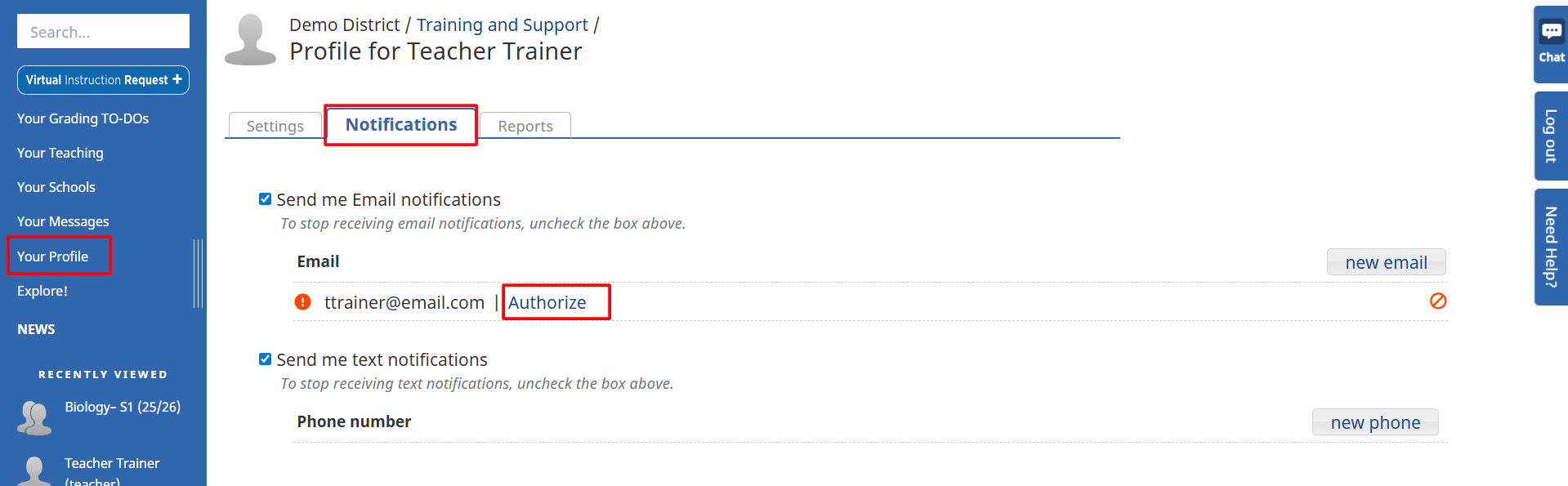
-
- Check your email inbox
- Look for a message from sender@schoolsplp.com
- Open the email and copy the authorization code
- Return to SchoolsPLP
- Click Authorize again
- Paste the code into the box and click Confirm
- Once complete, you will see a green checkmark next to your email
What This Does
Authorizing your email allows SchoolsPLP to send alert notifications to your email for:
- 📩 Chat notifications (e.g., when a student messages you)
- 📊 Report downloads (such as enrollment reports)
- 🔔 System updates and notifications
Important: Reports Require Email Authorization
If your email is not authorized:
- You will not receive email notifications when the report is ready for download
Example:
- When running a Current Enrollment Report or Export Users Report, the system will send you a notification to your SchoolsPLP Chat directing you to the reports tab under the Your Profile link when the report is ready for downloading.
- The report is downloaded as a CSV file
- Generated reports are available for 30 days in the reports tab
Optional: Enable Text Notifications
You can also receive notifications via text message.
Steps:
- Go to Profile → Notifications
- Click to add a new phone number
- Enter your number (no dashes)
- Click Save
- Click Authorize
- Enter the code sent to your phone
What Text Notifications Do
Once enabled, you can receive:
- 📱 Student chat alerts
- 🔔 Important system notifications
Tips & Troubleshooting
- Check your spam/junk folder if you don’t see the email
- Authorization codes may expire, so request a new one if needed
- Make sure to enter the code exactly as shown
Need Help?
If you're still not receiving notifications after authorizing your email, contact your system administrator or SchoolsPLP support.