
How to Print a Test Attempt for a Student to Complete Offline
If a student needs to complete a test offline using a paper copy, you can use the system to print a randomized test attempt and then enter the student’s answers afterward so the assessment is scored automatically.
Step 1: Create a Printable Version of the Test
- Open the course editor.

- Click the three dots menu to the right of the item you want to print an attempt for.
- Select Preview.
- If the test has a setting that starts the assessment automatically, click the back arrow within the blue header bar to return to the Start screen.
-
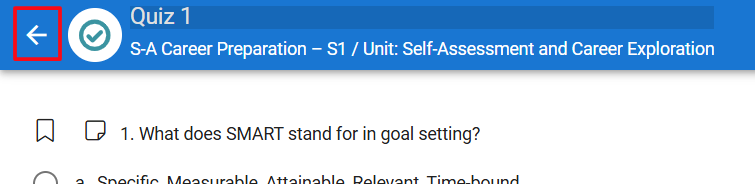
- In the preview screen, click the Print button to the left of the Start button.
- In the print popup:
- Select the student(s) you want to create a test version for.
- Click Print.

*Note: If a student does not have an available attempt, a retry must first be allowed before you can print a version of the test for that student. An error message will appear if you attempt to print a test for a student without an available attempt.
- A student-specific version of the test will be created.
- The student’s name will appear at the top of the page.
- The version number will appear in the upper-right corner.

- Click Print again to print the assessment.
- You can also choose Save as PDF instead of printing.
Step 2: Have the Student Complete the printed version (Paper Test)
Provide the printed version to the student and have them complete the assessment on paper.
Step 3: Scoring the Printed Test
- Open the Gradebook in the LMS, Buzz
- From the course editor, click the three horizontal lines in the upper-left corner.

- Select Gradebook from the dropdown menu.

- In the Gradebook, click the name of the test you want to score.

Step 4: Enter the Student’s Printed Answers
- Clicking the title of the item you want to score in the gradebook will open the Activity Grader screen.
- Click the wrench icon in the upper-right corner.
- Select Enter Printed Assessment Answers.

- Choose the student from the list.

*The assessment version displayed should match the same version number as the printed test given to the student.
*If it is the student’s first attempt, no version number will be displayed.
Step 5: Enter Answers and Score the Test
- Enter the student’s answers from the paper copy.
- Submit the responses.
- The system will automatically score the assessment for you.
Additional Notes
- If you print a version of a test for a student and the student later starts the test digitally, the system will save the student’s answers. You may still print the test, have the student continue on paper, and enter the remaining answers by following the steps above.
- If a student starts a test and saves their progress, you can print a version for the student that already includes the questions answered in their current saved attempt.

- If a student does not have an available attempt, a retry must first be allowed before you can print a version of the test for that student.
Still Need Help?
If you need further assistance, Email: support@schoolsplp.com
You may also use the Need Help button while logged in to:
- Contact Support (Choose Email option)
- Browse Knowledge Base articles (Help Docs option)
- Chat with the AI Companion for quick assistance (AI Answers option)