
Enabling Student Engagement Tools
Overview
SchoolsPLP's Student Engagement Tools help promote active learning by encouraging students to engage with instructional videos and course content before progressing through a lesson.
These tools are designed to improve content engagement and encourage students to spend appropriate time interacting with course materials.
Student Engagement Tools can be configured for individual students within a course or applied across an entire class by contacting the SchoolsPLP Customer Success Team.
Accessing Student Engagement Tools
Step 1: Sign In
Log in to your SchoolsPLP account. After signing in, you will be taken to the Progress Tracking tab.
Step 2: Select a Course
Locate and open the course where you would like to configure Student Engagement Tools.
Step 3: Open Course Setup
From the upper-right corner of the Teacher Dashboard, click Course Setup.
Once inside, you will see a large yellow banner indicating that you are in Setup Mode.
Within Setup Mode, you can:
- Configure Student Engagement Tools
- Manage student enrollment
- Edit course settings
- Adjust course start and end dates
Selecting Student Engagement Tools
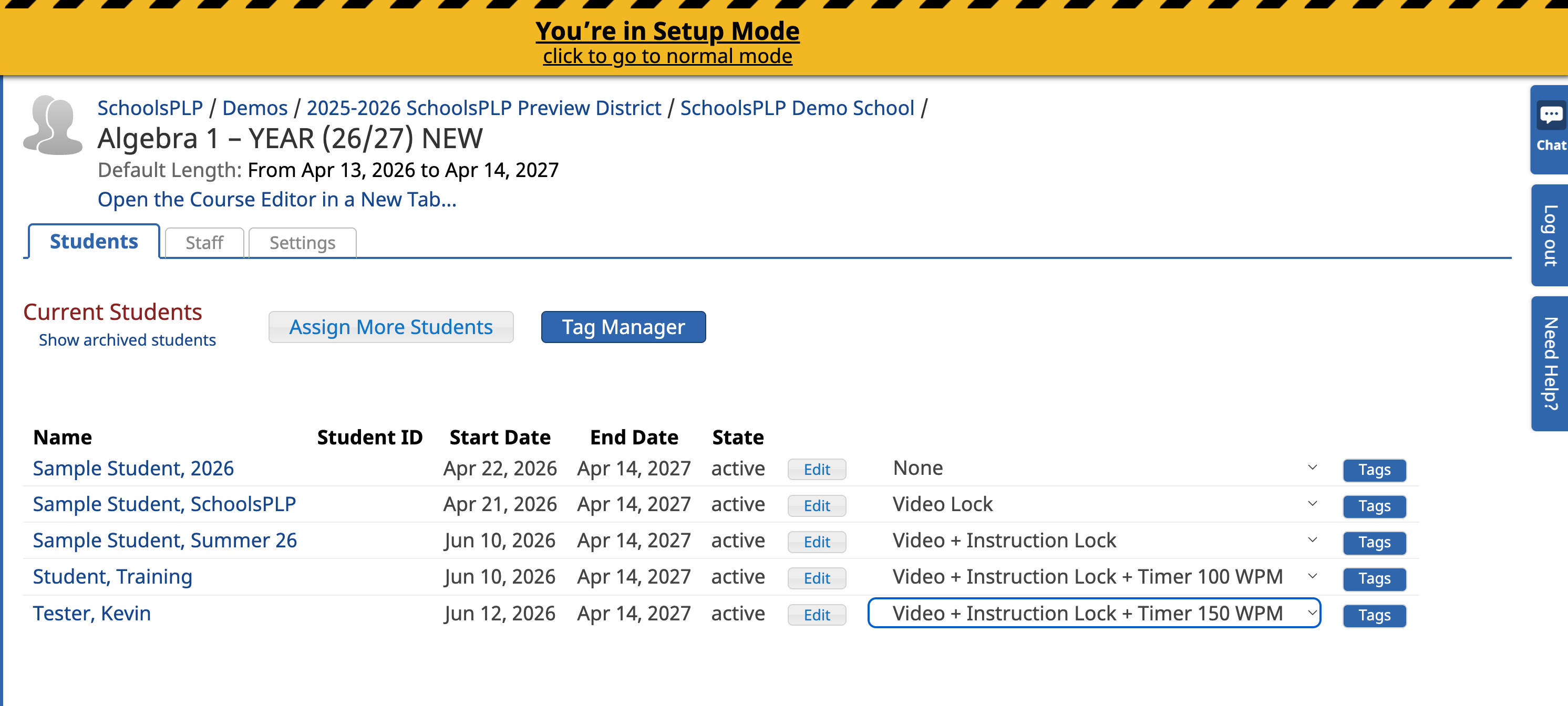
Each student enrolled in the course will appear on the left side of the screen.
Use the drop-down menu beside each student's name to choose the Student Engagement Tool you would like to apply.
The available tools are described below.
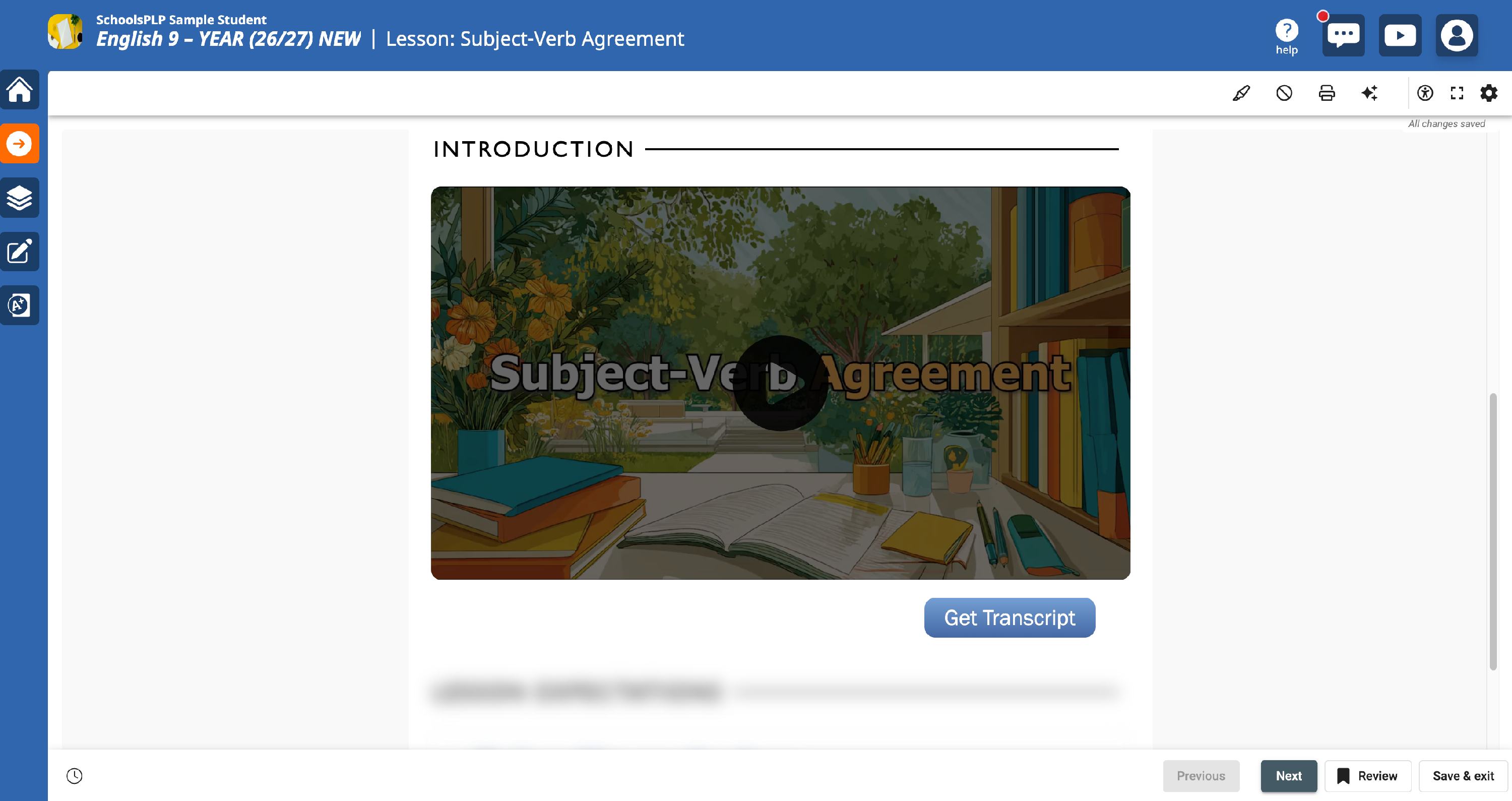
Video Lock
The Video Lock tool requires students to watch instructional videos before progressing through the lesson.
When enabled:
- Students cannot bypass required videos.
- Lesson navigation remains locked until the video has been viewed in its entirety.
- If a student leaves the browser tab before the video is complete, they must return and finish watching before continuing.
Recommended for:
- Reinforcing engagement with instructional videos.
- Supporting courses where video instruction is a key component of learning.
- Helping ensure students experience lesson content in its intended sequence.
Video + Instruction Lock
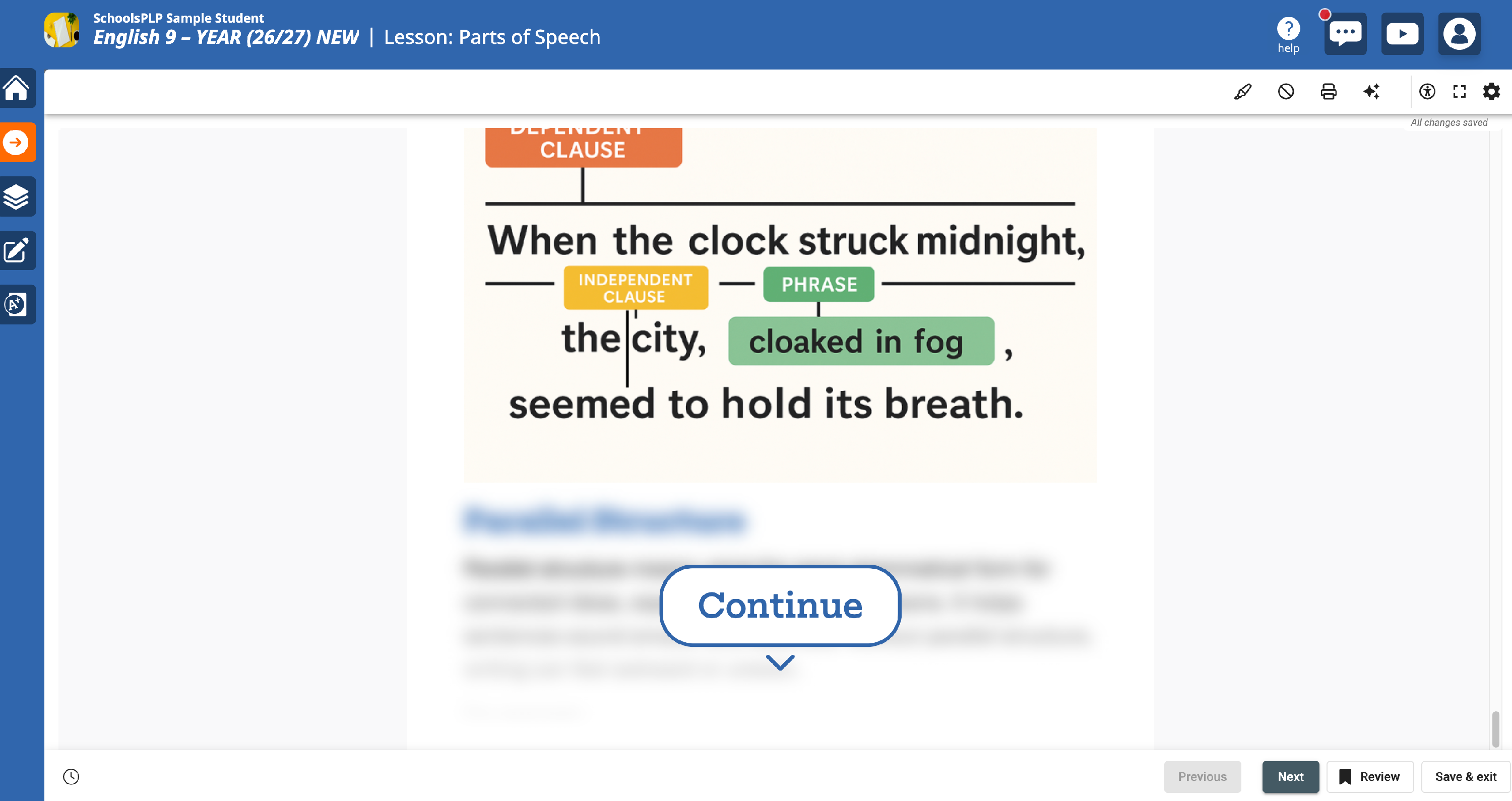
The Video + Instruction Lock tool encourages students to engage with both video instruction and written lesson content.
When enabled:
- Required videos must be completed before progressing.
- Students cannot freely scroll through lesson content.
- Lesson content is presented in sections.
- Students select Continue to unlock additional content as they progress through the lesson.
This tool encourages students to spend time interacting with both the instructional videos and the written content before advancing.
Recommended for:
- Promoting balanced engagement with both video and text-based instruction.
- Encouraging students to read lesson content at a more intentional pace.
- Supporting courses that combine multimedia instruction with written learning materials.
Video + Instruction Lock + Timer Lock
The Video + Instruction Lock + Timer Lock tool combines all of the features above while adding a reading timer based on the amount of text displayed on each lesson page.
Timer Lock can be configured using one of the following reading speeds:
- 100 words per minute
- 125 words per minute
- 150 words per minute
Example:
If a lesson section contains 300 words and the reading speed is set to 100 words per minute, students will remain on that section for approximately 3 minutes before they can continue.
During this time:
- Required videos must still be completed.
- Reading content remains locked until the timer expires.
- Students are encouraged to spend appropriate time engaging with the instructional material before advancing.
Recommended for:
- Supporting thoughtful engagement with course content.
- Encouraging students to spend adequate time reading lesson material.
- Reinforcing balanced participation with both text and video instruction.
Applying Student Engagement Tools
There are two ways to configure Student Engagement Tools.
Individual Students
Use the drop-down menu beside each student's name to assign the Student Engagement Tool that best meets each student's learning needs.
Entire Class
If you would like the same Student Engagement Tool applied to all students enrolled in a course, contact the SchoolsPLP Customer Success Team (support@schoolsplp.com).
Be prepared to provide:
-
School name
Course name(s)
The Student Engagement Tool you would like applied:
- Video Lock
- Video + Instruction Lock
- Video + Instruction Lock + Timer Lock
Need Assistance?
If you need help configuring Student Engagement Tools, we're here to help.
You can:
- Select the Need Help button located in the upper-right corner of the SchoolsPLP platform.
- Contact support@schoolsplp.com for assistance.
Benefits of Student Engagement Tools
Student Engagement Tools help educators:
- Improve student engagement with course content.
- Reinforce participation in instructional videos.
- Encourage meaningful interaction with written instructional material.
- Support appropriate pacing throughout lessons.
- Create a more engaging and intentional learning experience.