
📄Worksheet Zone & Google Drawings submissions
Using Google Drawings and Worksheet Zone for Student Submissions
Some lessons in Lincoln Learning courses ask students to complete a worksheet or graphic organizer and submit it. These activities use one of two tools: Google Drawings or Worksheet Zone. This article explains how students complete and submit work with each tool, and how teachers can find those submissions.
Note: Lincoln Learning is moving most Google Drawings activities over to Worksheet Zone, so you may see both in the same course.
Google Drawings
Requirements
Google Drawings links only work when the student is signed in to a Google account on their device. If a student isn't signed in, or if your organization doesn't allow students to access Google Drive this way, the link won't open. You may need to check with your district's IT department to confirm students are allowed to access Google Drive.
How students complete a Google Drawing
-
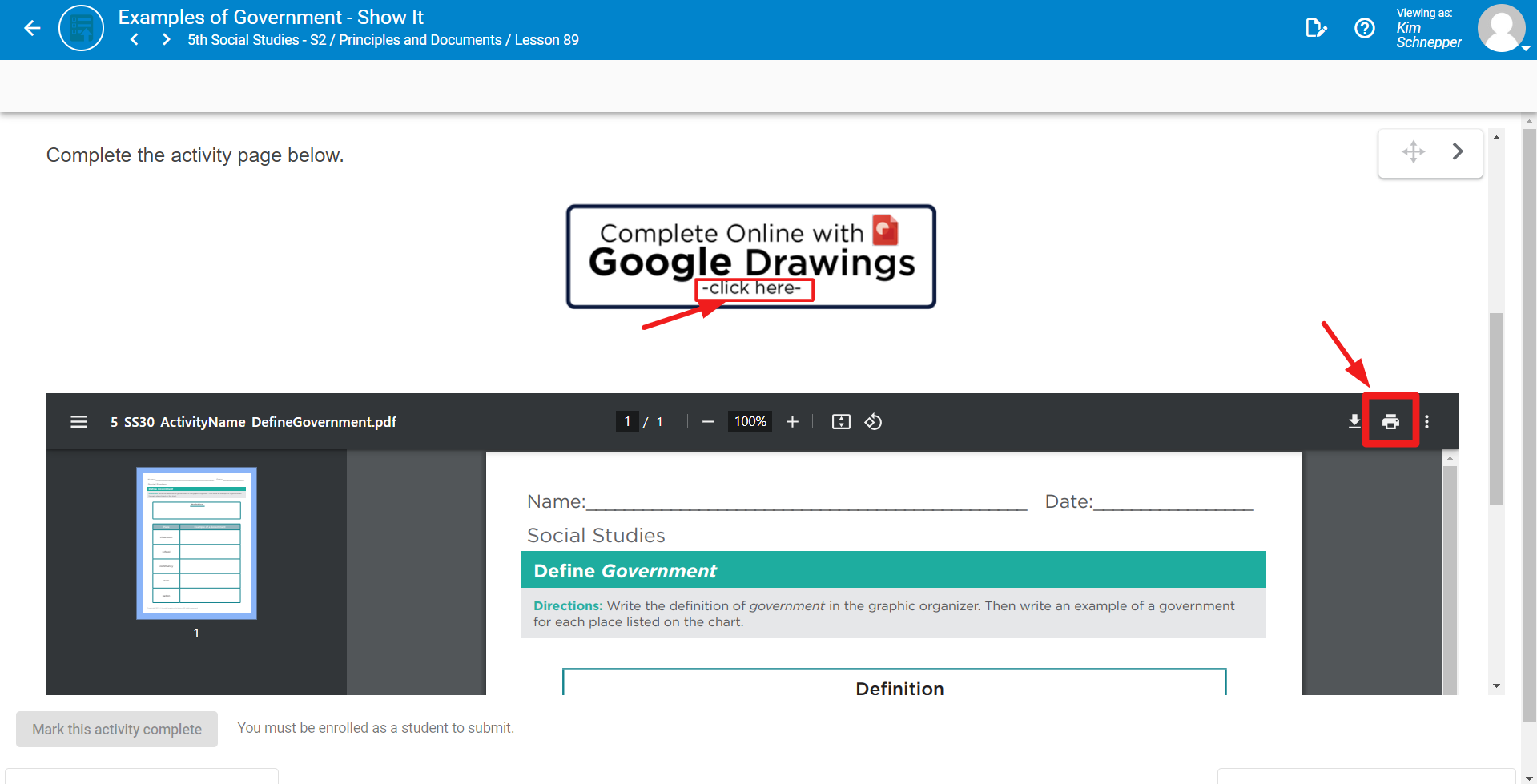
In the lesson, click the Click Here link for the Google Drawing.
-
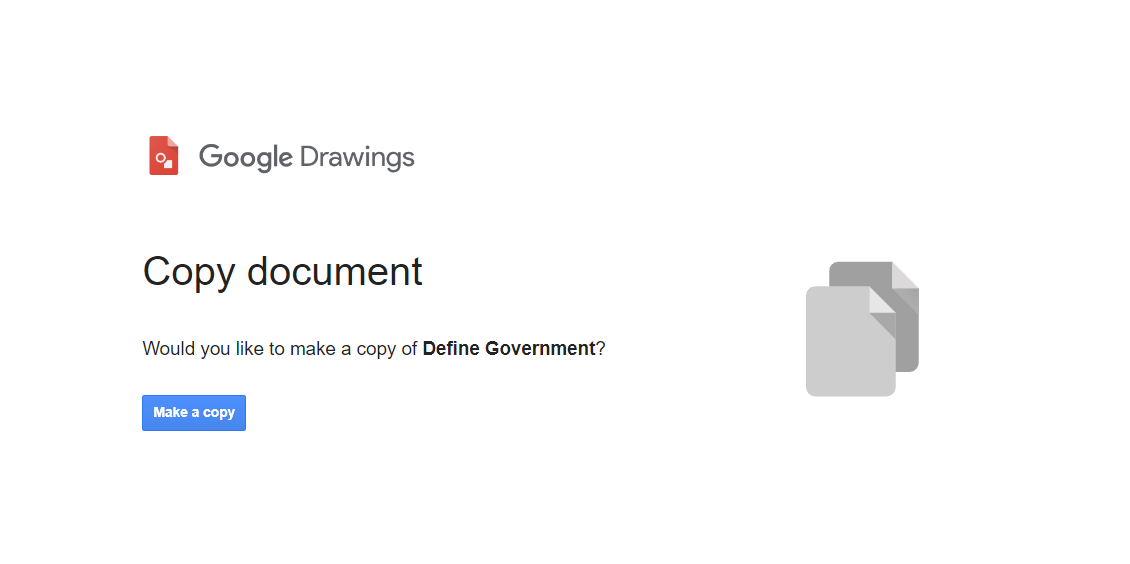
The student's Google Drive opens and asks them to make a copy of the file. Click Make a copy. The copy is saved to the student's own Google account.
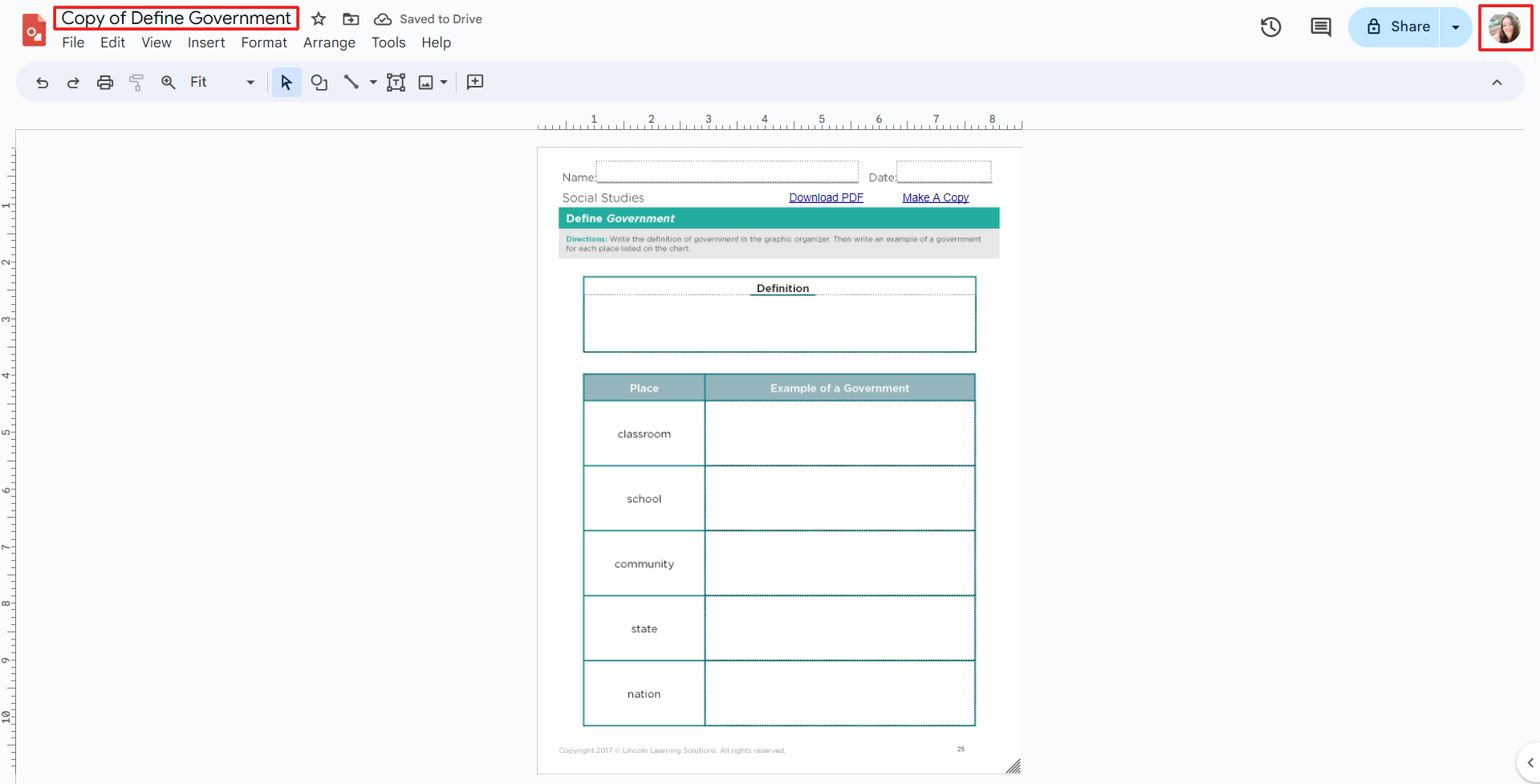
- Fill in the responses in the copied Google Drawing.
-
When finished, attach the completed Google Drawing to the submission box in the lesson.
Google Drawings are optional
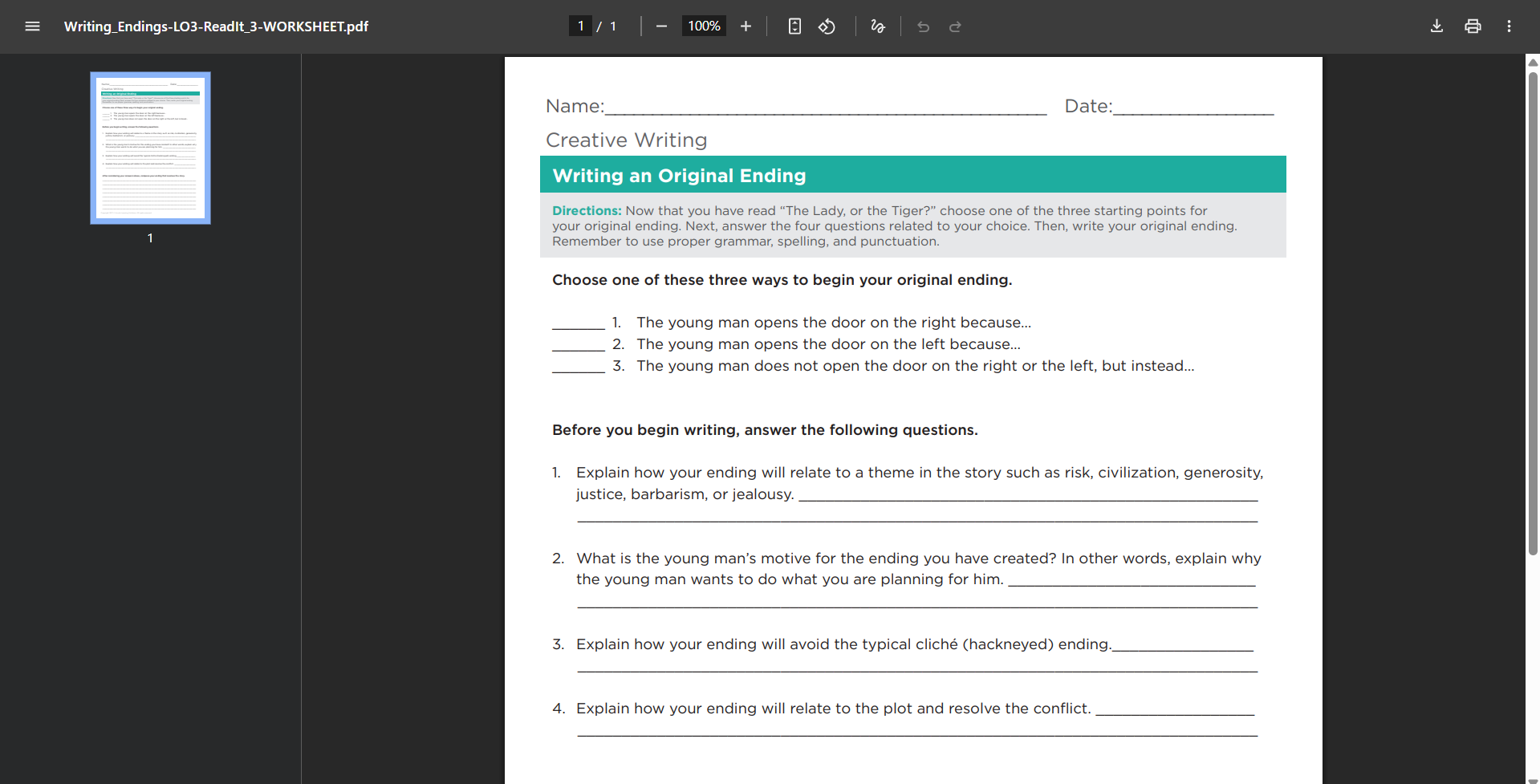
Students don't have to use the Google Drawing. It's provided for convenience. Students can instead print the activity using the print button in the lesson (shown in the first screenshot above), complete it by hand, take a photo of their completed work and upload to the submission box.
Where teachers find the responses
Because each student works in their own copy, the completed drawing lives in the student's Google account, not in the course. Teachers see the student's work through the file the student attaches to the lesson's submission box. Student's will need to ensure the file is shared in a way that allows the teacher to access the document.
Worksheet Zone
Lessons that use Worksheet Zone give students two ways to complete a worksheet: a printable PDF, or typing directly on the worksheet inside the lesson.
Option 1: Download or print the PDF
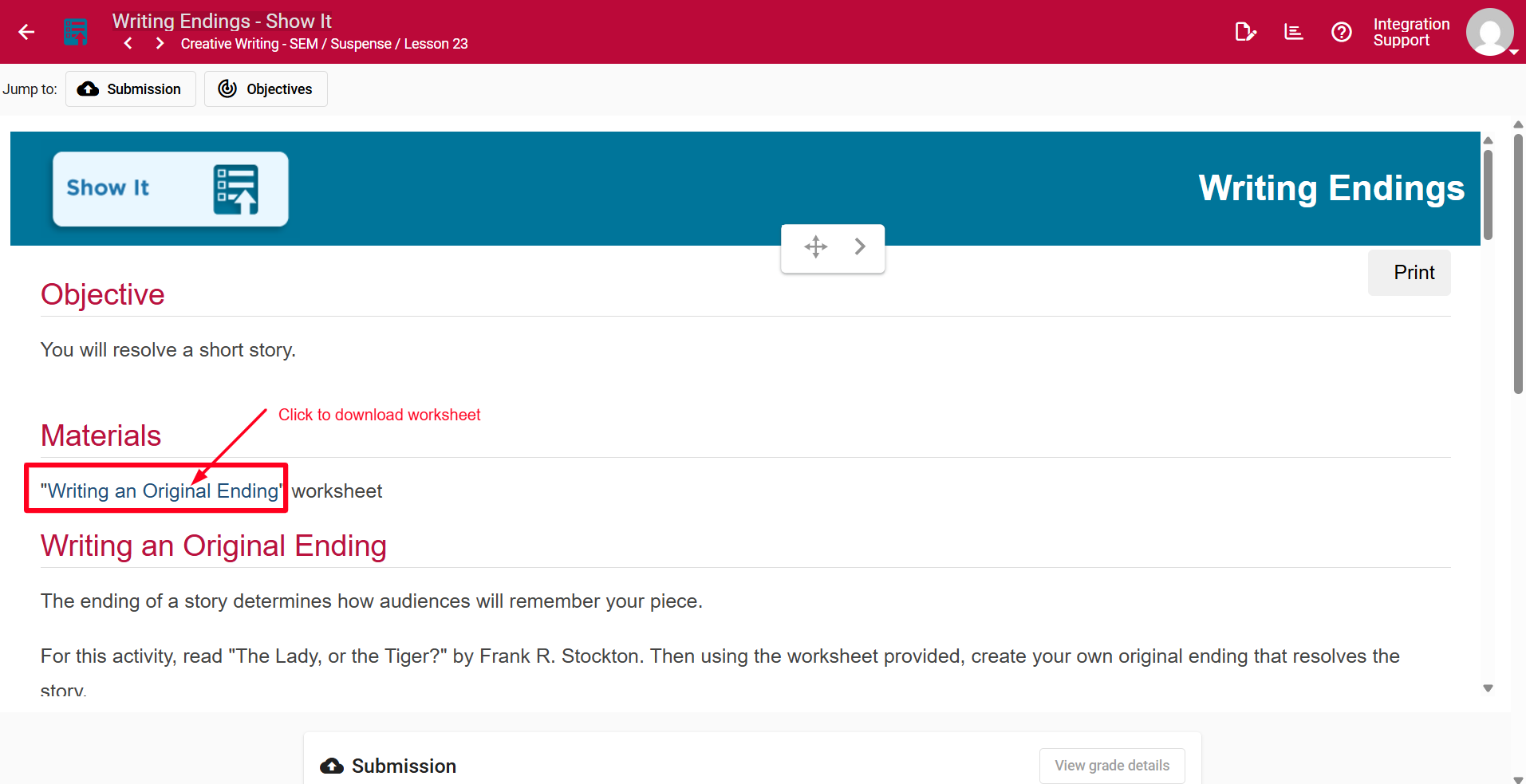
Click the worksheet link at the top of the lesson. This opens a PDF of the worksheet that students can download or print.
Option 2: Type on the worksheet in the lesson
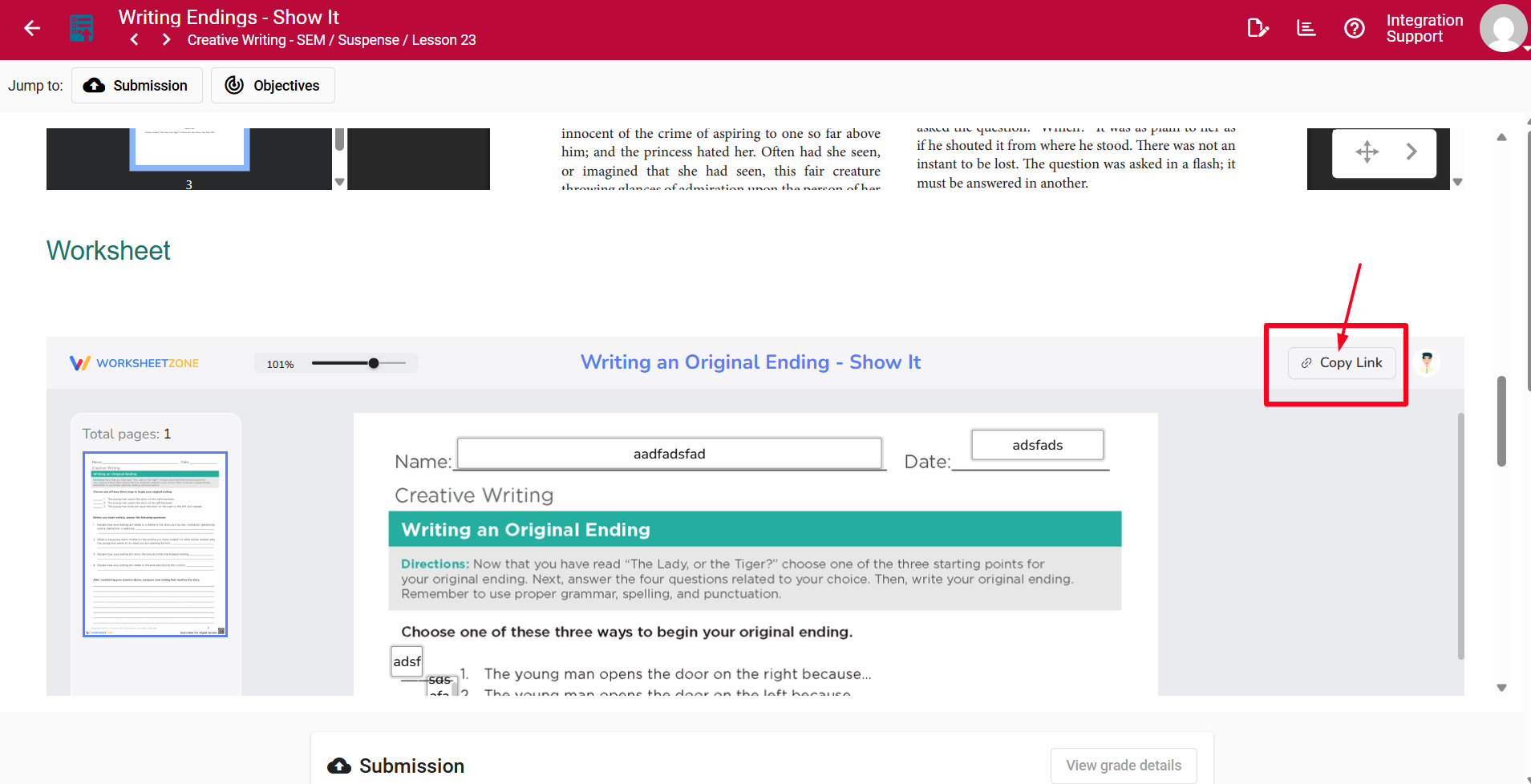
- Scroll down to the Worksheet Zone section of the lesson and type answers directly onto the worksheet.
- When finished, click Submit at the bottom of the worksheet.
-
Scroll back to the top of the worksheet and click Copy Link.
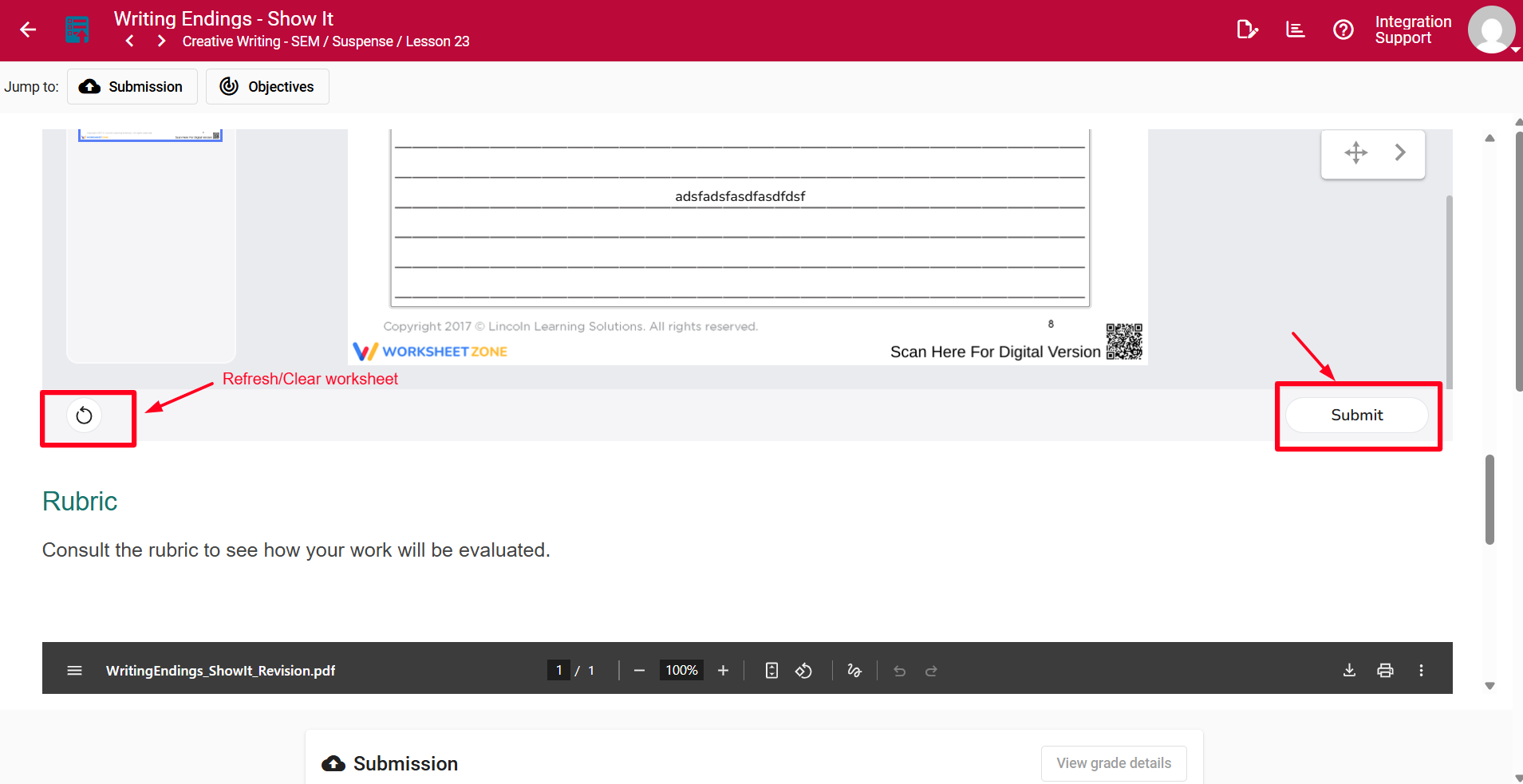
Tip: To clear the worksheet and start over, click the Retry symbol in the bottom-left corner.
-
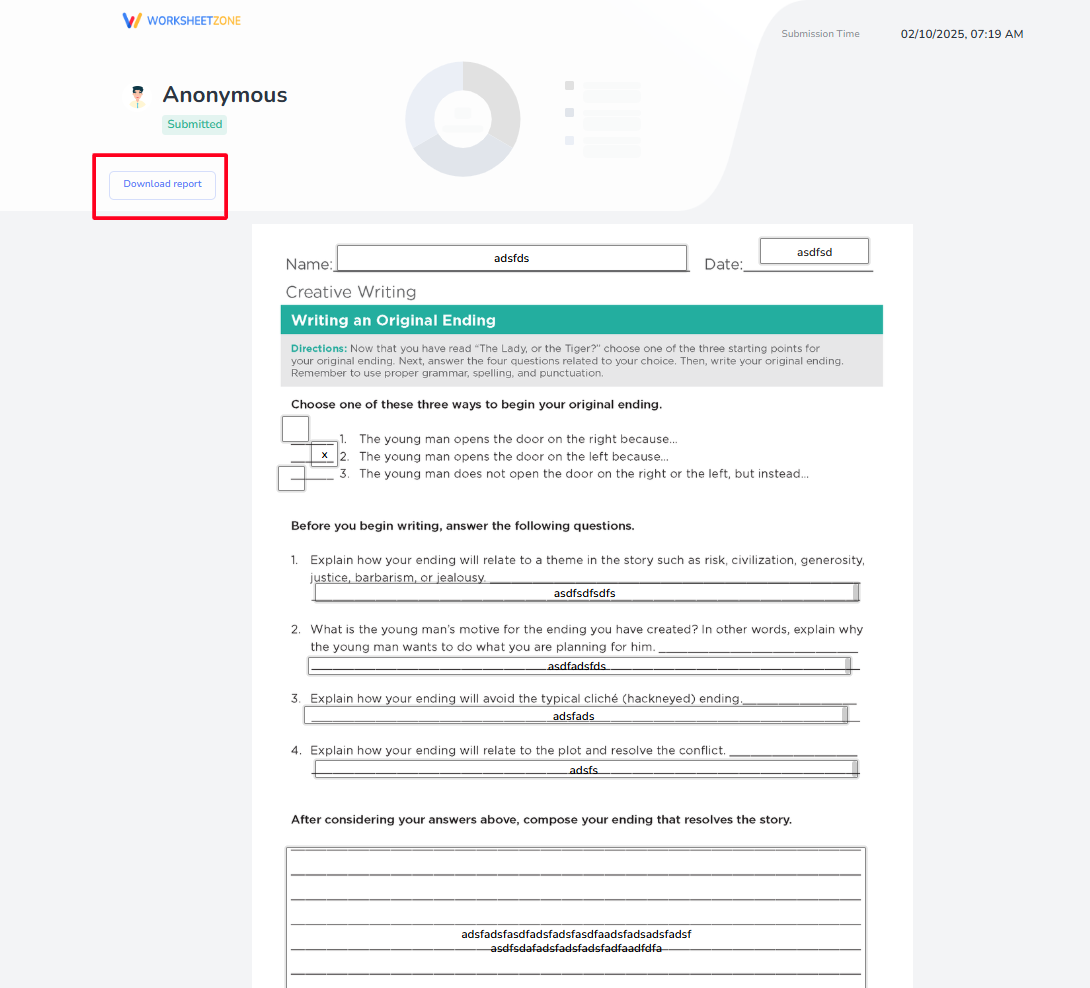
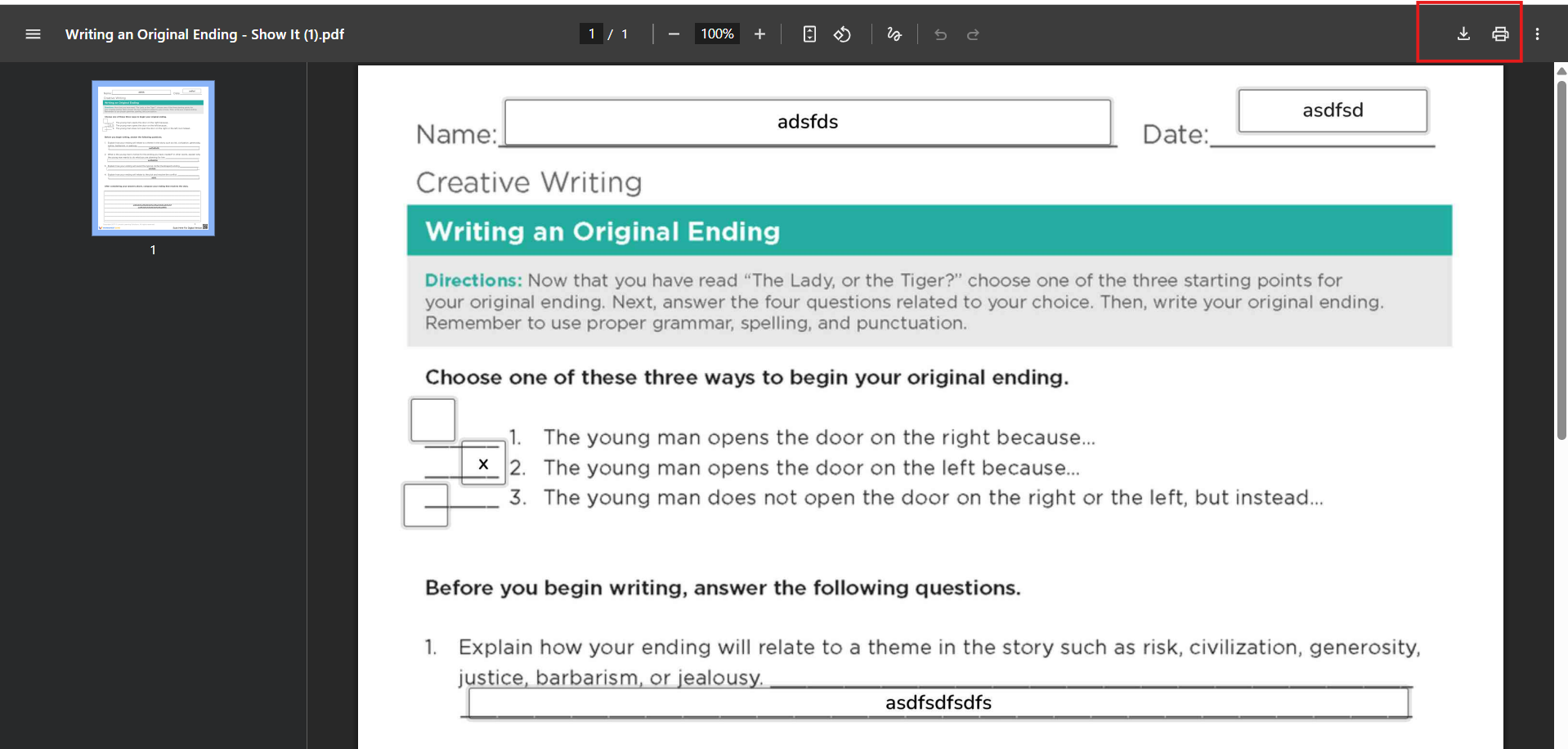
Paste the copied link into a new browser tab. This opens the student's submission on the Worksheet Zone website.
-
From the Worksheet Zone website, download or print the completed worksheet.
Still have questions?
If you can't open a Google Drawings link or are having trouble with Worksheet Zone, please reach out to your school staff for assistance.