
🔢How to Enable a Calculator Tool in assessments
Overview
You can turn on a built-in calculator tool so students can use it while they take an assessment, such as a quiz or unit test. Because the calculator is part of the assessment itself, students do not need a handheld calculator or an outside website. This works well for schools that lock down devices with tools like GoGuardian during proctored assessments.
There are three calculator types available. You can turn on one, two, or all three. If you turn on more than one, students can choose which calculator to use.
Important Requirements
- You must either be enrolled as a Teacher/Author in the course, or have user permissions that allow you to edit any course at your school. See Reference: Rights and Roles.
- The calculator is turned on one assessment at a time in the Course Editor. To turn it on for many assessments at once, see Enabling the Calculator in Bulk below.
How to Enable the Calculator
Step 1: Open the course
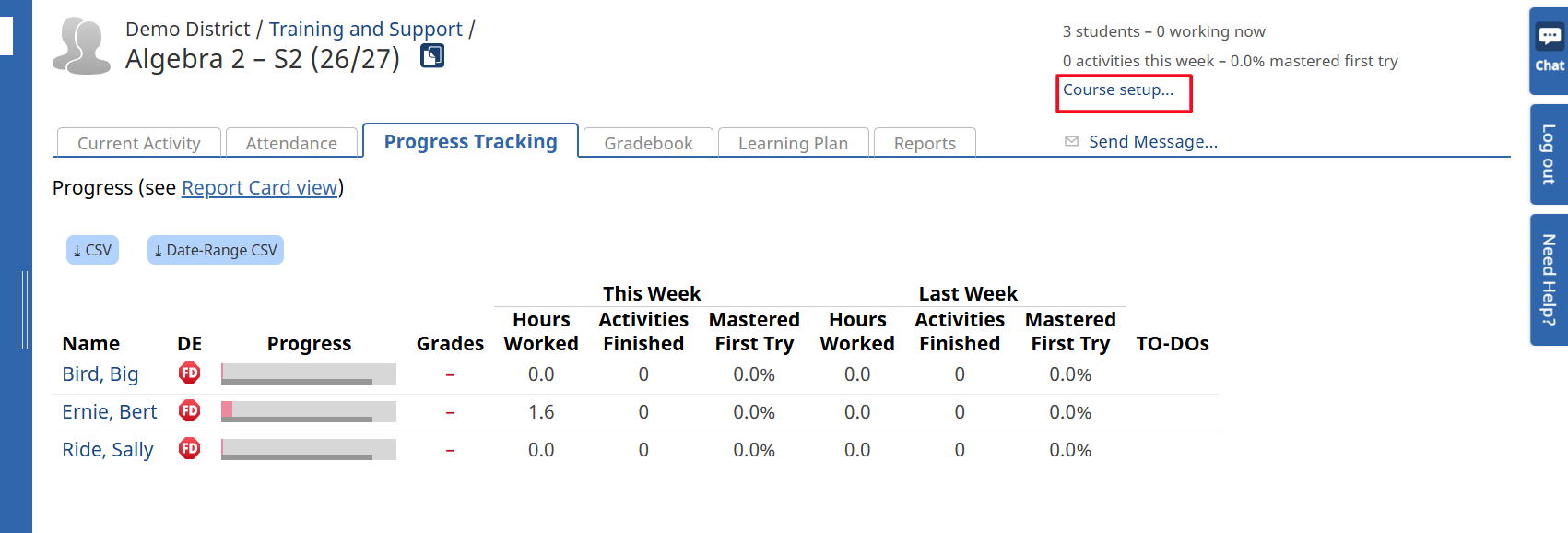
Select the course that has the assessment, then click Course Setup.
Step 2: Open the Course Editor
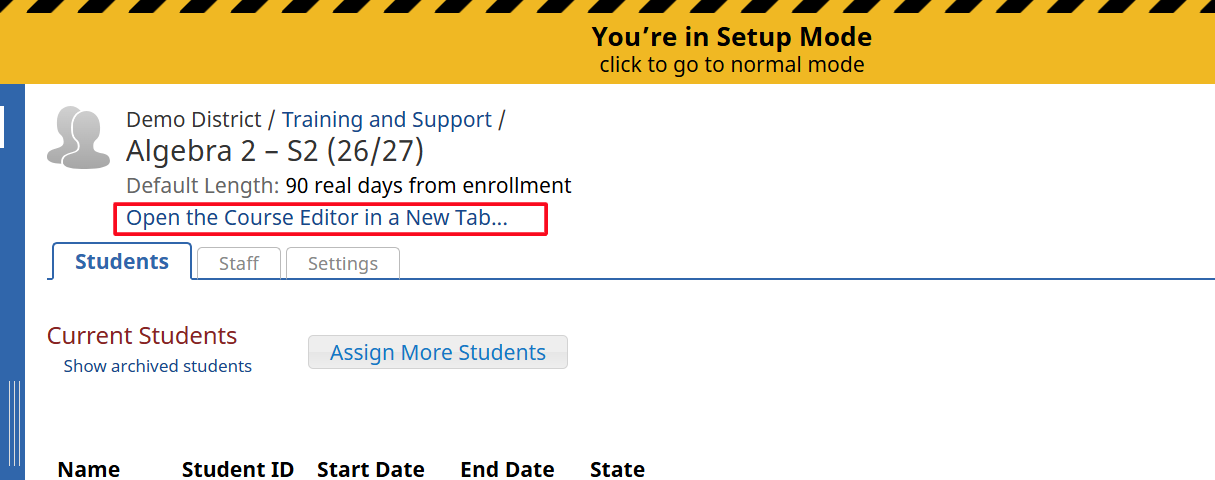
Click Open the Course Editor in a New Tab.
Step 3: Open the assessment's settings
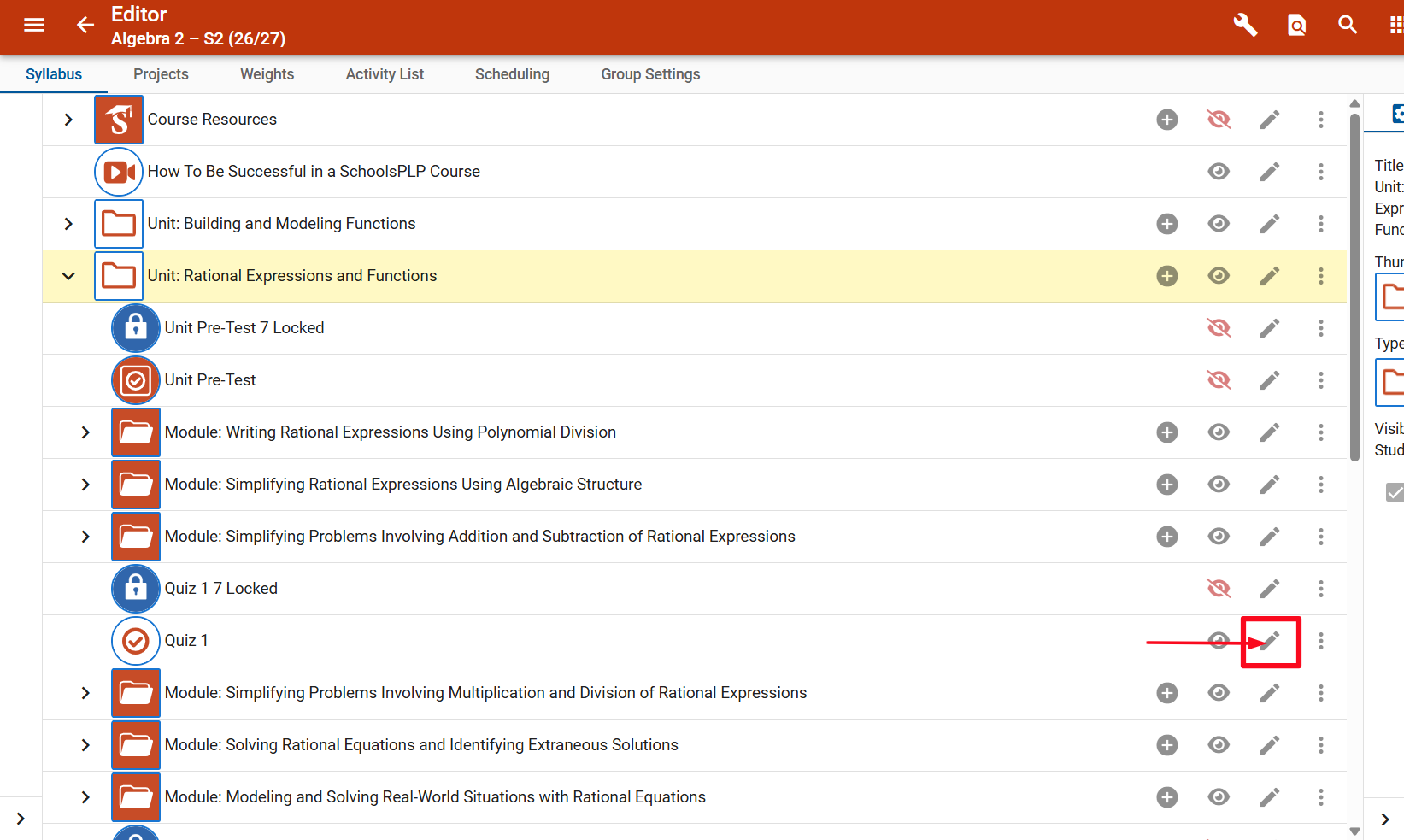
Find the assessment where students need a calculator and open its settings by clicking the pencil on the right.
Step 4: Go to the Activity settings
Step 5: Choose the calculator(s)
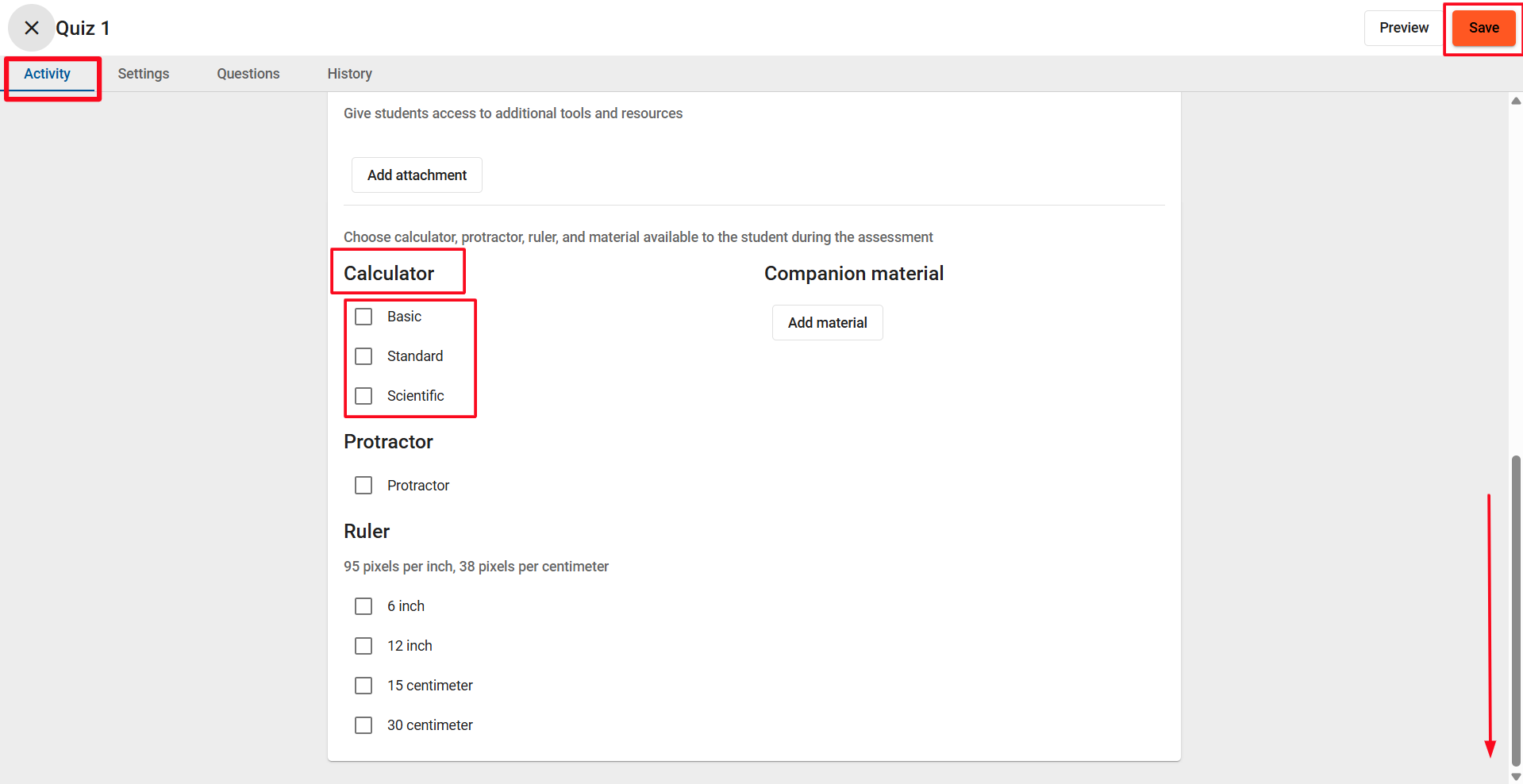
Scroll down to the Calculator setting and check the box next to each calculator type you want students to have. Basic, Standard, Scientific
Step 6: Save your changes
Click Save in the top right corner. Students will now see the calculator when they open this assessment.
Using the Calculator Tool
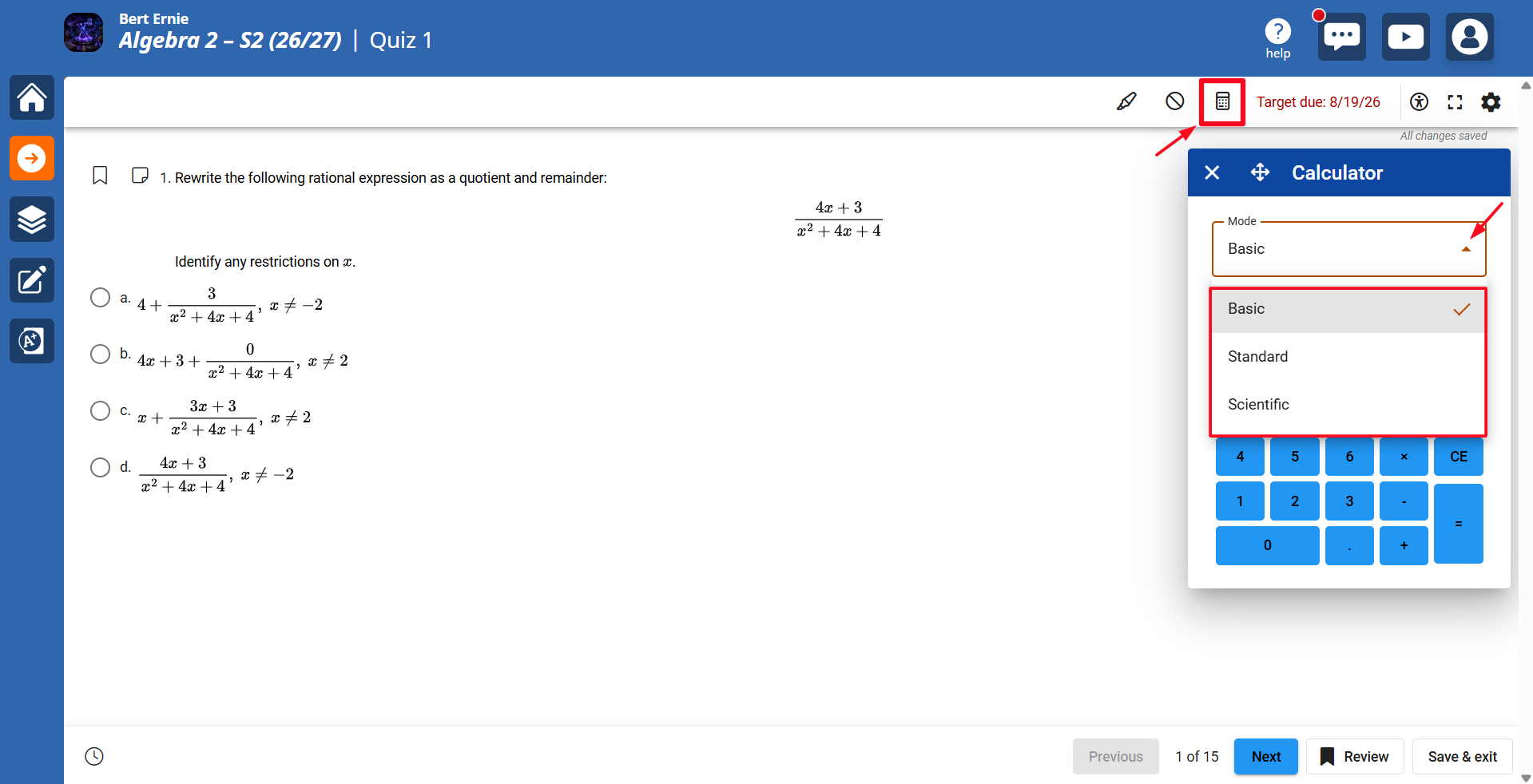
When students start a test with the calculator tool enabled, they’ll see a Calculator button in the top toolbar that opens the calculator. If you’ve enabled more than one calculator, students can switch between them using the Mode dropdown.
Enabling the Calculator in Bulk
Need the calculator turned on for many assessments at once, such as every assessment in a course or across several courses? Reach out to SchoolsPLP Support. We can apply the calculator setting in bulk for you. Just let us know:
- Which courses (or master courses) to update
- Which assessments should have the calculator (for example, all assessments or only quizzes)
- Which calculator types to turn on (one, two, or all three)
Note: Making this change in the master catalog courses will carry down to the connected sections.
Need Help?
Contact SchoolsPLP Support at support@schoolsplp.com or use the email option under the Need Help tab.